
AI Assistant
VirtuProbe Studio includes an AI assistant that lives in a dockable panel. It can explain what a response means, discuss a probe exchange or a chain/script run and, when you ask it to, build and run chains and scripts for you. It uses your own model: you bring an API key (or point it at a local model) and requests go straight to the endpoint you configure.
Setup: bring your own model
Section titled “Setup: bring your own model”Open Settings → AI Assistant. The assistant speaks the OpenAI-compatible chat API, so it works with most providers and proxies.
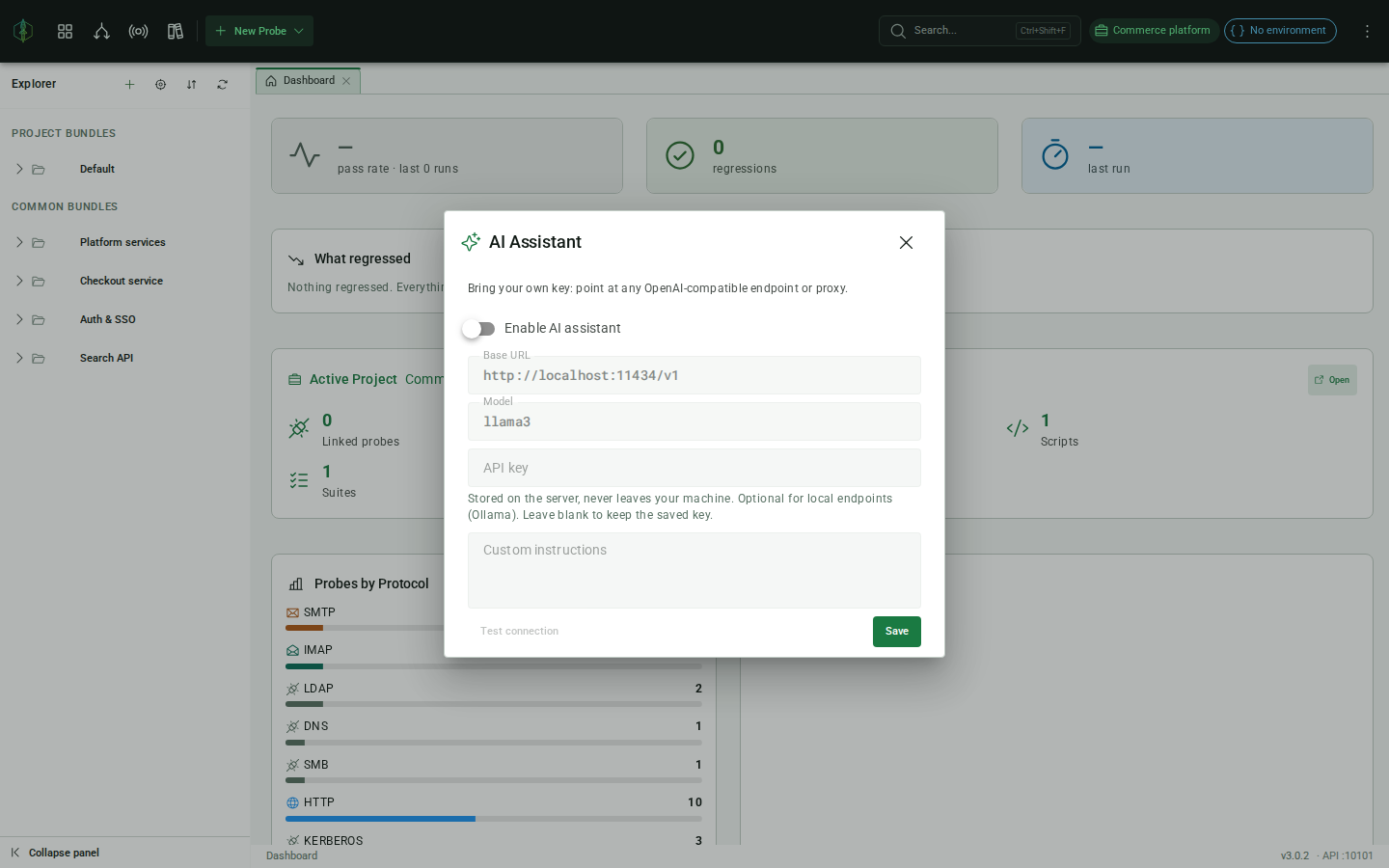
| Field | What it is |
|---|---|
| Enable AI assistant | Master switch. |
| Base URL | The OpenAI-compatible endpoint, e.g. https://api.openai.com/v1. A full …/chat/completions URL is accepted too. |
| Model | The model id, e.g. gpt-4o-mini or a Gemini/other model exposed by your endpoint. |
| API key | Sent as a bearer token. Optional for local endpoints (e.g. a local model server) that need no auth. Leave blank to keep a previously saved key. |
| Custom instructions | Your context for the assistant: your lab and targets, conventions, preferred language. This is appended to a built-in product primer (you don’t need to describe VirtuProbe itself). |
The key is stored locally and sent only to the endpoint you configure. The assistant is currently available in the desktop app.
Chatting
Section titled “Chatting”Click the AI assistant button (bottom-right), or press F5. The panel opens at the bottom of the window and you drag its top edge to resize it. Replies render as Markdown (with highlighted code blocks).
- Ctrl/⌘ + L clears the conversation.
- After a reply, the assistant may offer suggested follow-up chips. Clicking one sends it straight back.
Giving it context
Section titled “Giving it context”That button opens a menu with three ways to start:
- Chat with AI: a blank conversation.
- Discuss probe exchange: attaches the selected probe’s last request and response.
- Discuss chain / script run: attaches the result of the run for the chain or script open in the editor.
Attached items show as context chips above the input, so you always see exactly what the assistant was given. Use + Add context to attach more and remove a chip to drop it.
Letting it do the work
Section titled “Letting it do the work”Beyond explaining, the assistant has tools. It can read your workspace (projects, bundles, probes, exchanges, chains and scripts), it can search the library and it can act:
- Build & run: create or update a chain, run a chain, save and run a script.
- Send a single probe: fire one saved probe (with the active environment’s
{{variables}}resolved) and show you the response. - Fuzz a probe: run a list of payloads through the
§payload§marker and report each result. - Import: pull a ready-made request (or a whole chain) from the library, or import an entire API collection (OpenAPI, Postman, Bruno, HAR,
.http, Insomnia) as a new bundle. - Organize: move a chain or script to another project.
So instead of telling you how to add an assertion, it can add it.
“Build a chain from this exchange that asserts the status is 200 and extracts
$.messageinto a variable, then run it.”
It knows where you are
Section titled “It knows where you are”The assistant knows your active project, so new chains and scripts it creates land in the project you’re working in rather than somewhere random. The probes it sends and the chains it runs use your active environment. Say “move this to my Staging project” and it will.
Findings & evidence
Section titled “Findings & evidence”Ask it to summarize a run, an exchange, or a fuzz pass as findings and it writes them as Title · Severity · Affected target · Evidence · Recommendation, quoting the responses it actually saw rather than inventing results.
Your plan, your edition
Section titled “Your plan, your edition”The assistant knows your edition. If you ask for something a higher tier unlocks (for example SMB/Kerberos probes, fuzzing, scripting or the library), it will still help you design it and tell you which edition enables it, once, without nagging.
You stay in control. Reading is automatic, but anything that changes your data or sends a request to a target, so building, running, sending, fuzzing, importing or moving, shows an Approve / Reject card first, with the action and its arguments. A ⚡ toggle in the panel header switches to auto-approve if you’d rather it act without prompting (your call, your lab). Pressing Stop halts the assistant immediately, including any further actions.
What goes to your model
Section titled “What goes to your model”The assistant has no model of its own. Every request goes from the desktop app straight to the Base URL you configured, with your API key as the bearer token. The request does not pass through any service we operate. Your provider’s terms and its data handling apply to what you send, which is why picking the endpoint (a hosted provider, your company’s proxy or a model running on your own machine) is the main privacy decision here.
Each request carries:
- the built-in product primer and your Custom instructions
- a short description of where you are, meaning the active project (name and id) and your edition with its protocols and features
- the conversation so far, including the context chips you attached (a probe’s last request and response, or a chain or script run result)
- the result of every tool the assistant called, such as probe configurations, exchanges, chain steps, script source, run results and library matches, each one cut off after 8,000 characters
The assistant has no tool that opens the credential store. Anything it does read goes to the endpoint as it is, which includes a token typed straight into a probe field, a variable value inside a run result or a secret that a target put in its response. If that matters for the data you work with, point the assistant at a model you run yourself.
The conversation is kept in memory while the app runs. VirtuProbe does not save it, so clearing the conversation or restarting the app discards it.
How AI output is labeled
Section titled “How AI output is labeled”The panel always shows a line saying you are talking to an AI model and naming it. Every reply carries the model that wrote it. Messages that come from VirtuProbe itself, such as a connection error, are labeled VirtuProbe.
A chain or script the assistant writes is marked AI-generated in its editor. The mark’s tooltip names the model and the time of the last AI change. The mark stays when you edit the chain or script yourself, when you save a copy, when you export a chain and when the workspace is a shared folder, so whoever opens it later can still tell where it came from. A later AI change replaces it with the newer model and time.
Limitations
Section titled “Limitations”- It can be wrong. A model can misread a response or invent an id or a field that does not exist. It can also write a chain that runs and still tests the wrong thing. The Approve card shows each action with its arguments before it happens. For a chain save it adds the Test quality check.
- The model decides the quality. A small local model follows the tool instructions less reliably than a large hosted one.
- It sees only what its tools return. It has no access to your network, files or targets beyond the tools above.
- A target can talk to the model too. Responses from the systems you test reach the model as data. A hostile one can carry text written to steer it (prompt injection), for example toward sending a request somewhere you did not intend. Approving each action is the check against it, so keep auto-approve off when you point the assistant at a system you do not trust.
- Auto-approve sends real requests without asking. With the ⚡ toggle on, the assistant runs chains, sends probes and fuzzes targets the moment it decides to.