
Burp Suite bridge
Move a request between Burp Suite and VirtuProbe in either direction. Send something you captured in Burp over as an HTTP probe, or take a probe you built in VirtuProbe and open it in Repeater to work on it by hand.
Once a request is in VirtuProbe it behaves like any probe you authored yourself, so you can put it in a chain, extract values from its response and fuzz it (fuzzing is on the Security tier and above).
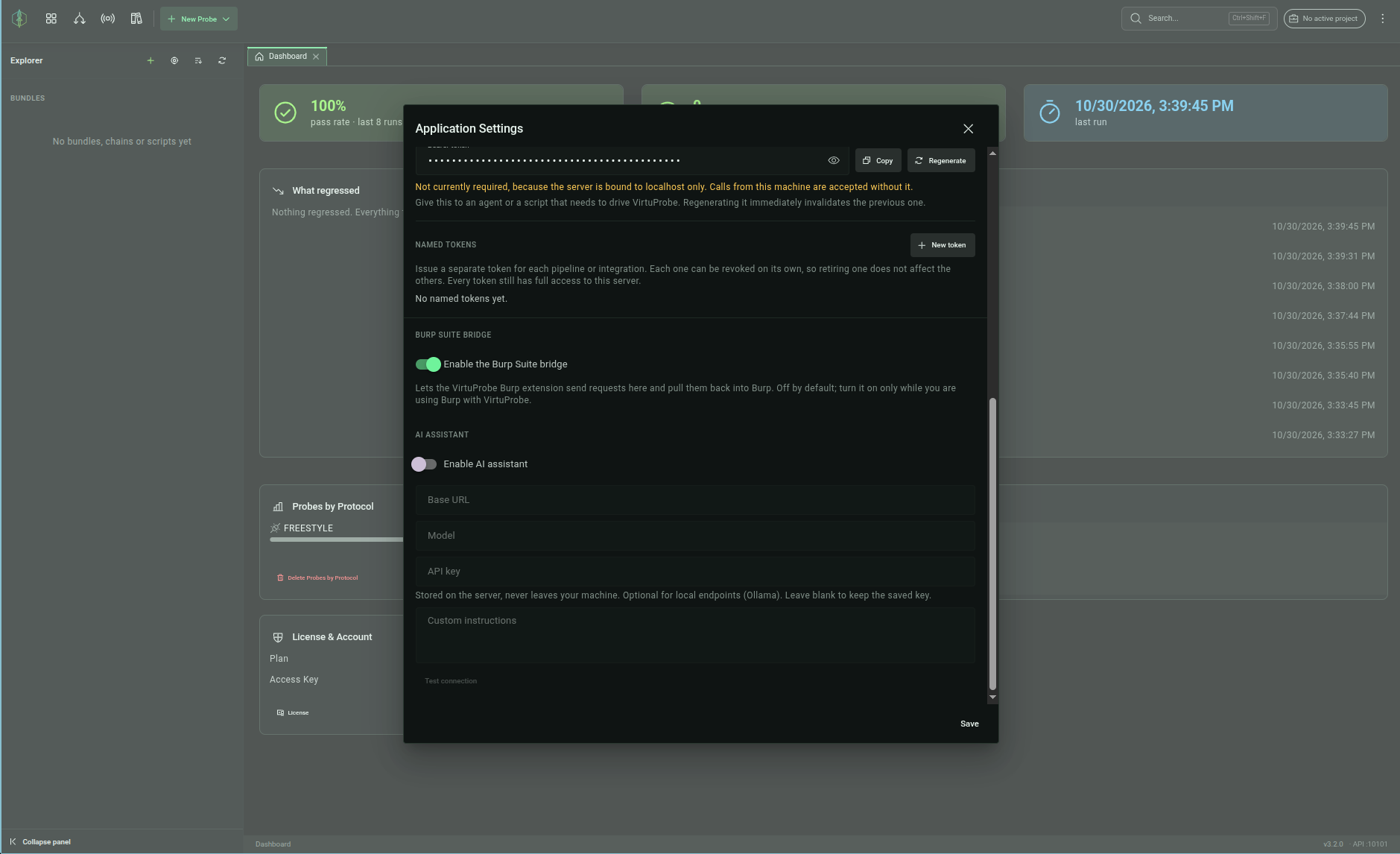
Turn on the bridge setting first
Section titled “Turn on the bridge setting first”The Burp Suite bridge setting is off by default. Open Settings, find the Burp Suite bridge section and switch on Enable the Burp Suite bridge, then click Save. Turn the setting off again when you are done.
Get the extension
Section titled “Get the extension”Download the extension: virtuprobe-bridge.jar.
The extension is open source under the MIT license, so you can read what it does before you load it into Burp. If you would rather run your own jar, build it yourself from github.com/foobar-beer/virtuprobe-burp-extension.
To load it into Burp:
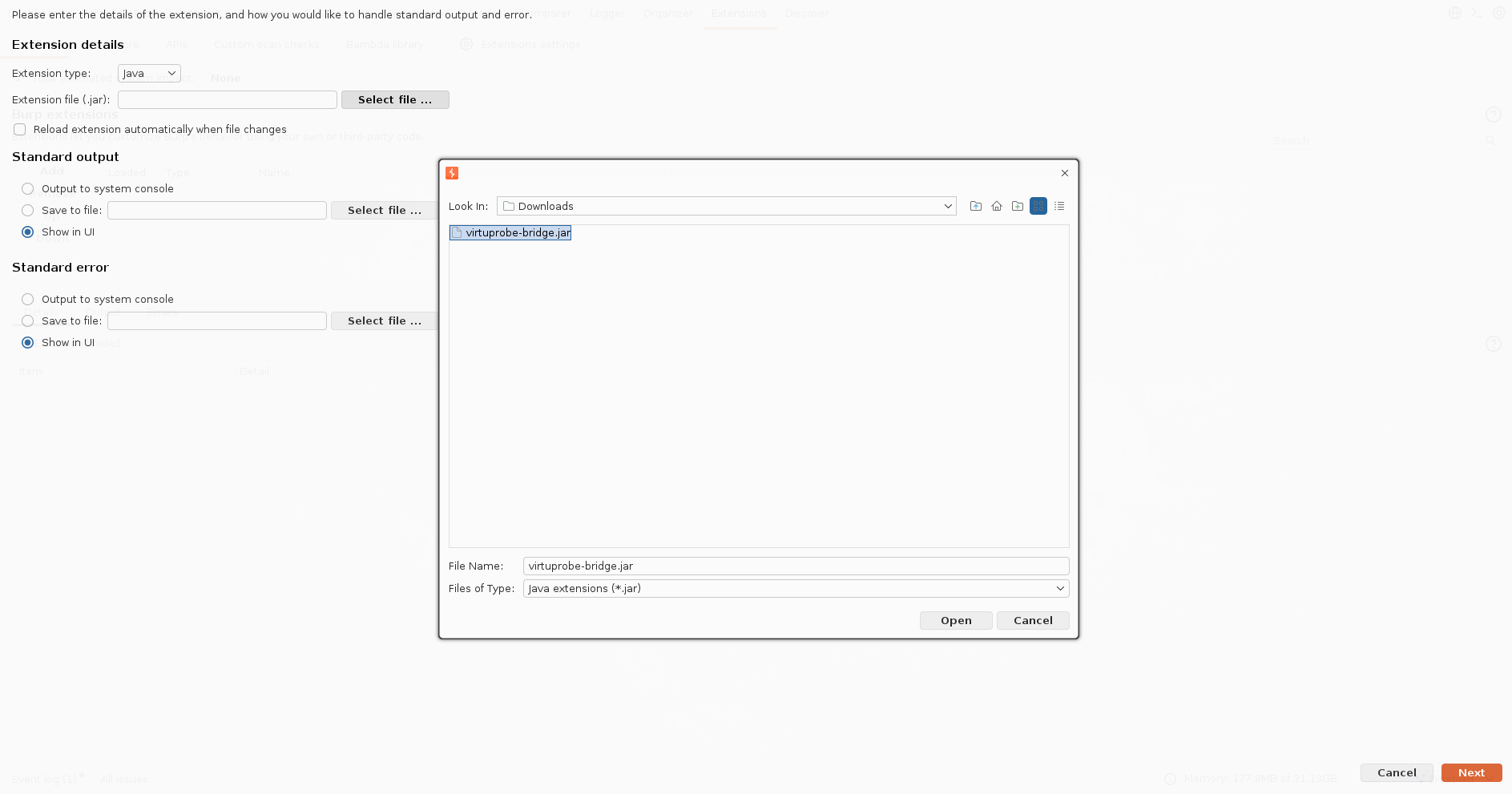
- In Burp Suite, open the Extensions tab (Extensions → Installed).
- Click Add.
- Set Extension type to Java.
- Select the VirtuProbe extension jar and confirm.
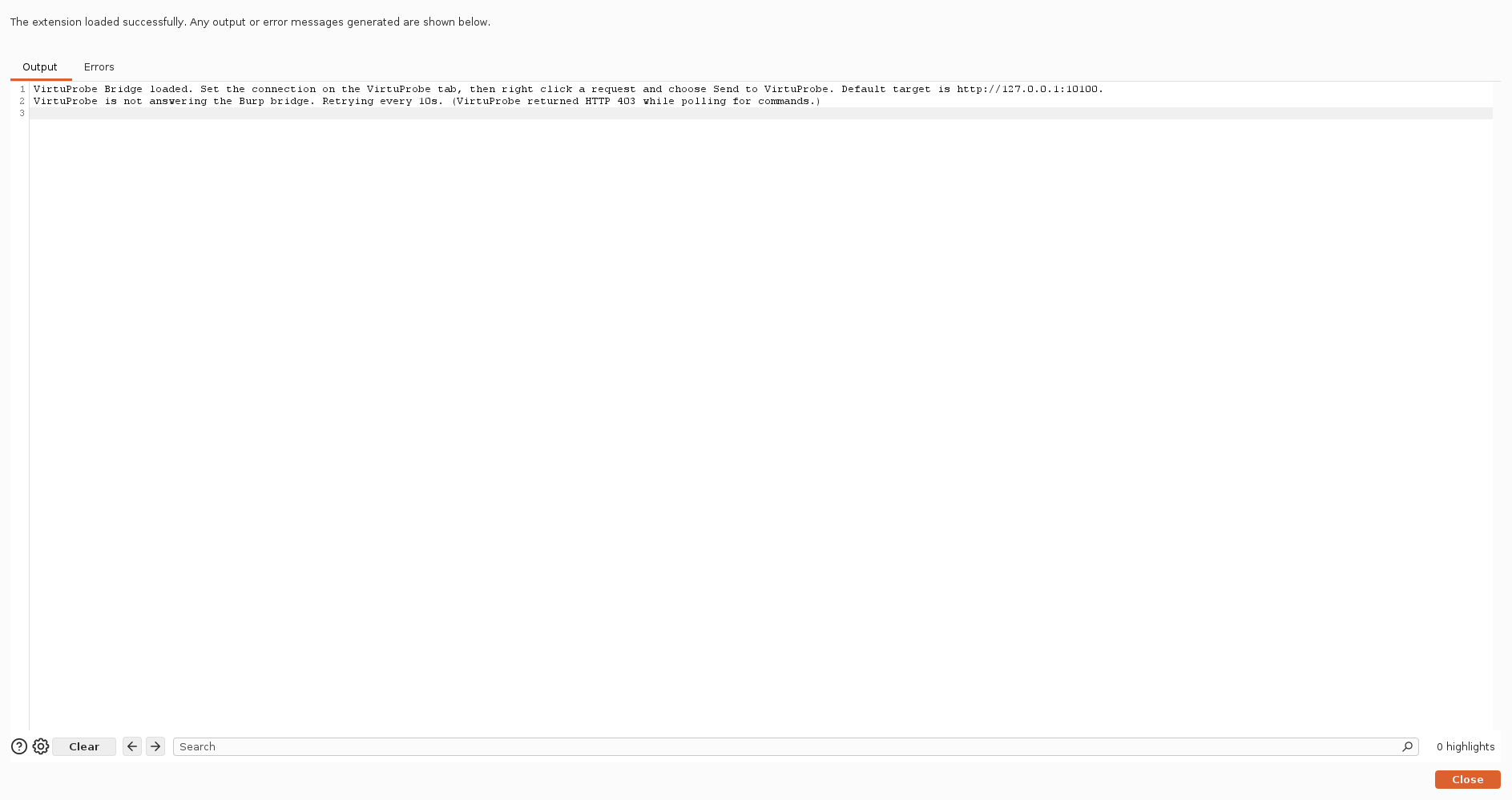
If the bridge setting is still off when the extension loads, VirtuProbe refuses it with HTTP 403 and the extension output in Burp says so. The extension retries every 10 seconds, so it connects at the first retry after you switch the setting on and click Save.
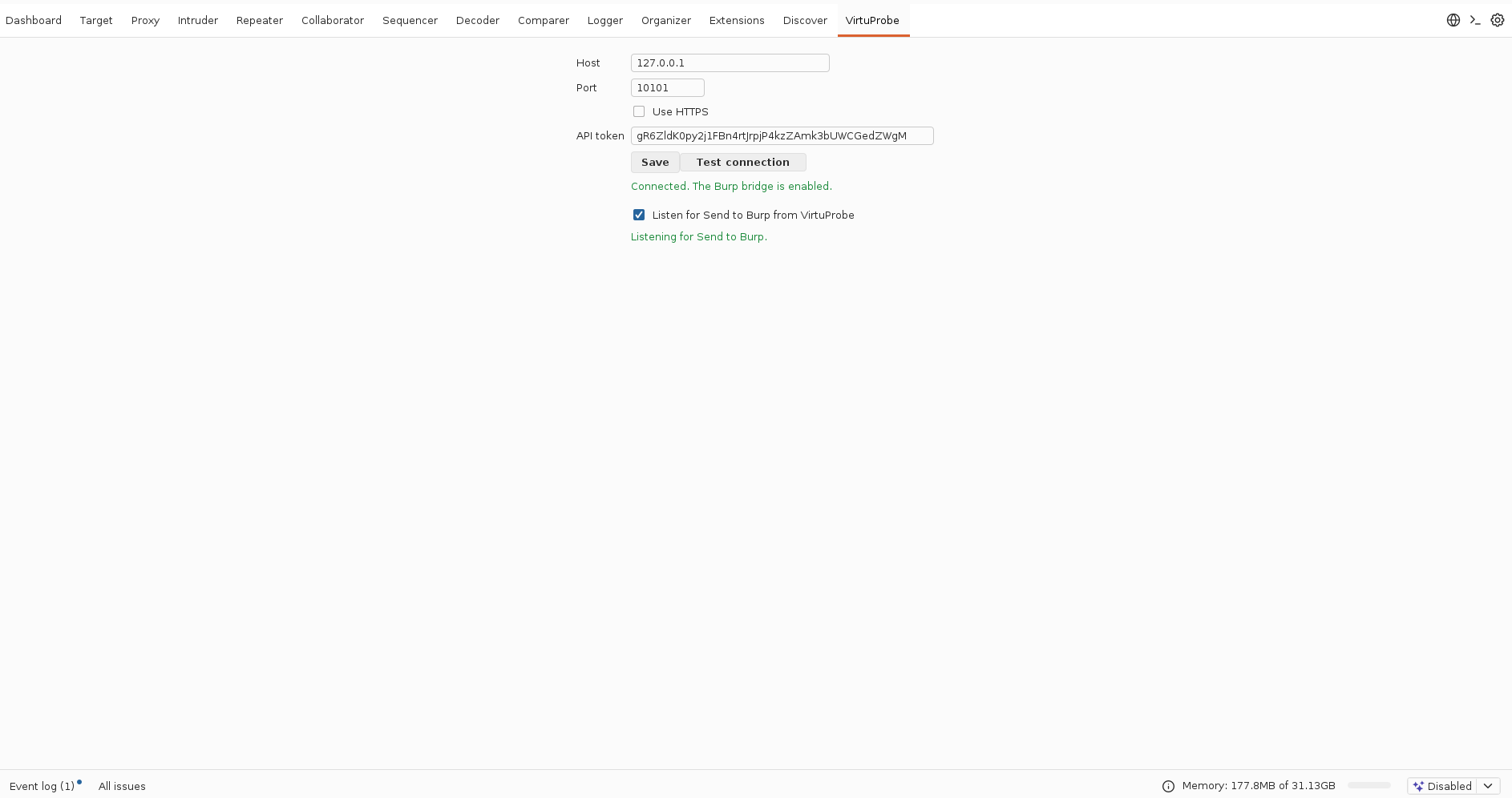
The extension adds a VirtuProbe tab to Burp. The VirtuProbe host and port there default to 127.0.0.1:10100, which is where a desktop install listens on the same machine. Change them only if you moved the port or VirtuProbe runs on another machine. If VirtuProbe asks for a token, paste the API access token from VirtuProbe Settings into API token. Test connection checks that Burp can reach VirtuProbe and that the bridge setting is on.
Send a request into VirtuProbe
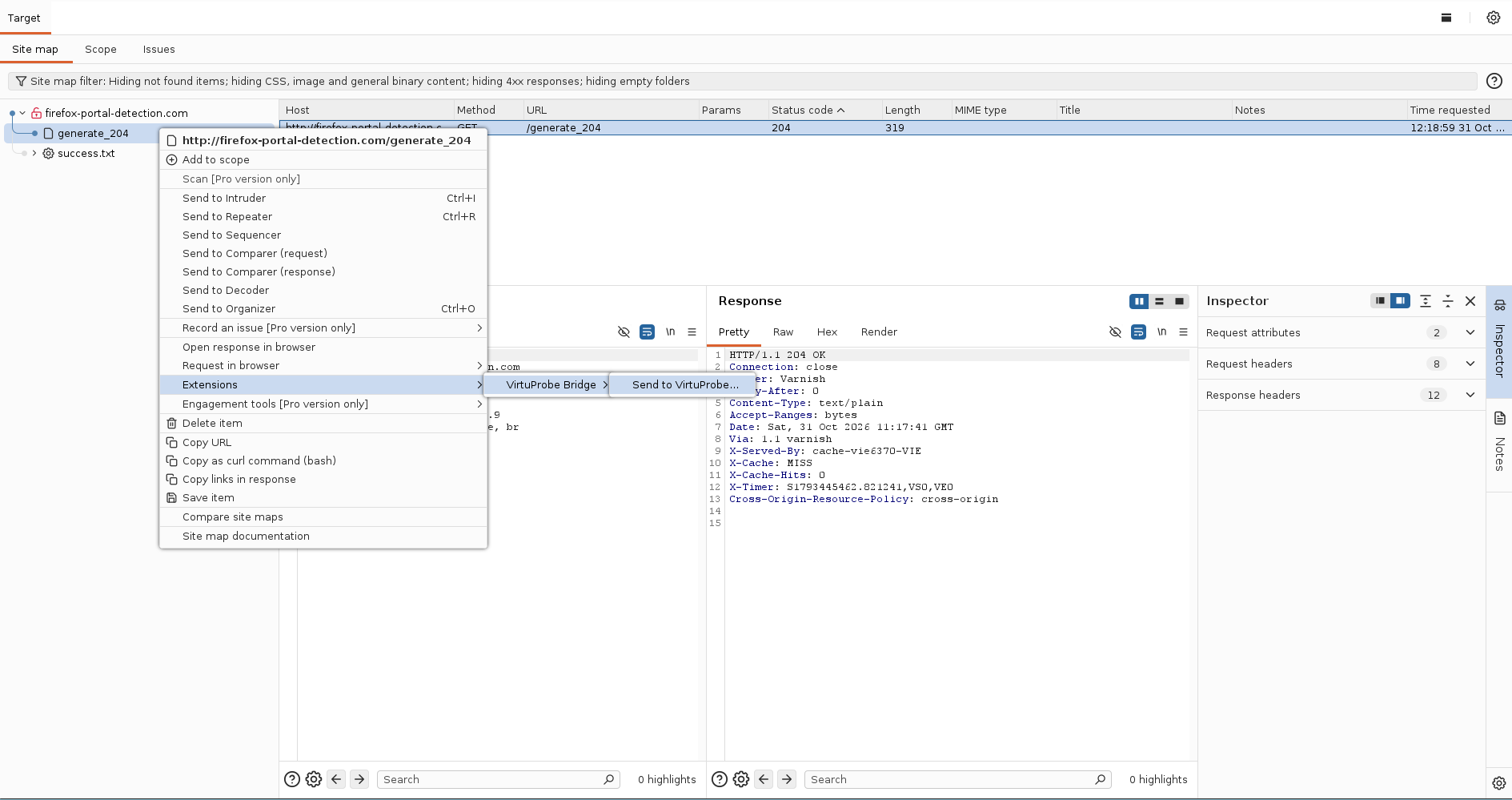
Section titled “Send a request into VirtuProbe”Right-click a request in the Burp proxy history, the target site map or Repeater and choose Extensions → VirtuProbe Bridge → Send to VirtuProbe. Select several requests first and the menu offers to send them all together.
A dialog asks where the request should land:
- Project and Bundle pick the destination. The bundle list shows what that project can see, with + New bundle… to create one.
- Mode is either Structured, which fills in the method, URL, headers and body as editable fields, or Verbatim, which keeps the exact bytes Burp captured with nothing normalized on the way in. Choose Verbatim when the precise shape of the request matters.
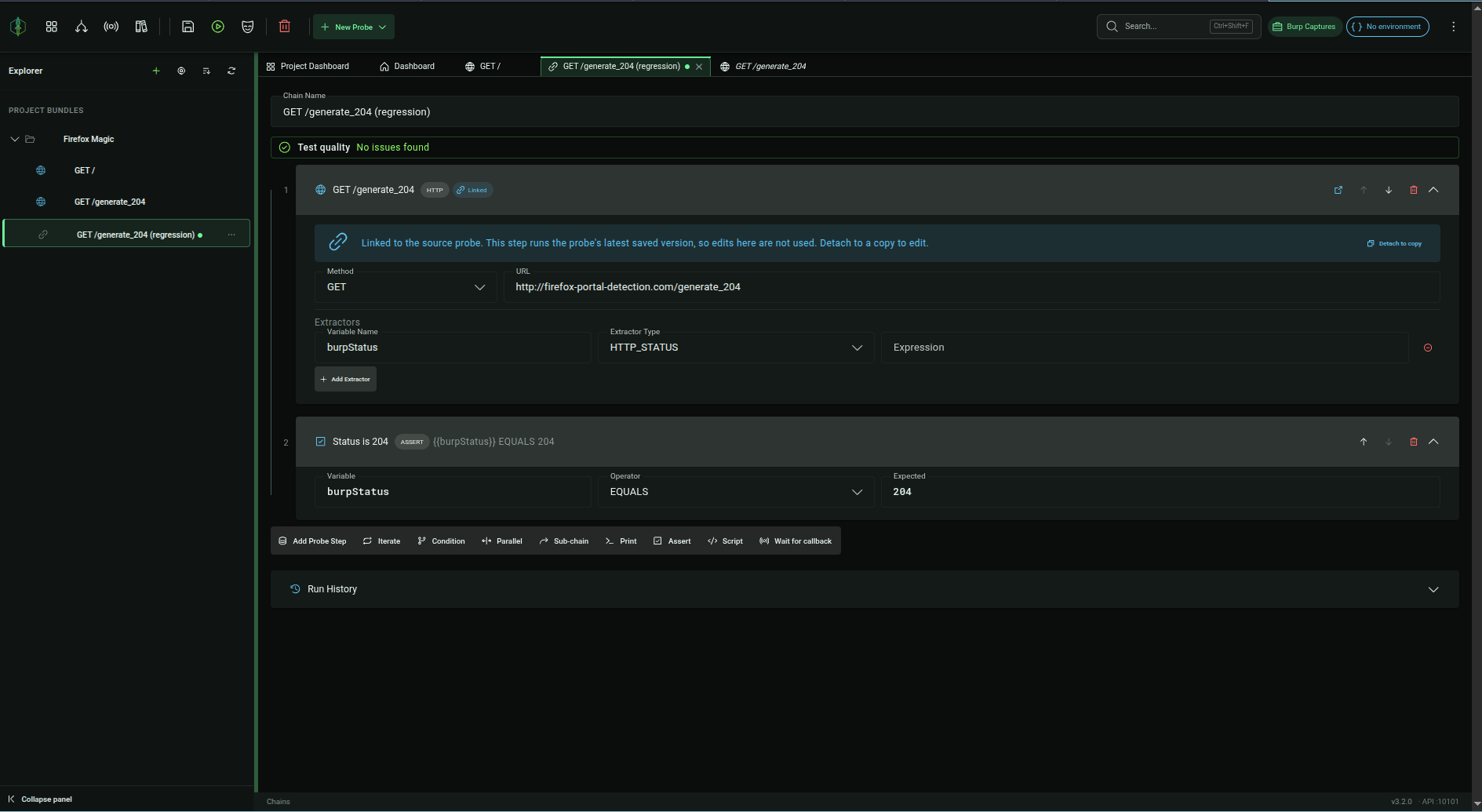
- Also create a regression test asserting this status builds a chain beside the probe. It runs the request and asserts the same response status Burp saw, so what you found can run again on demand.
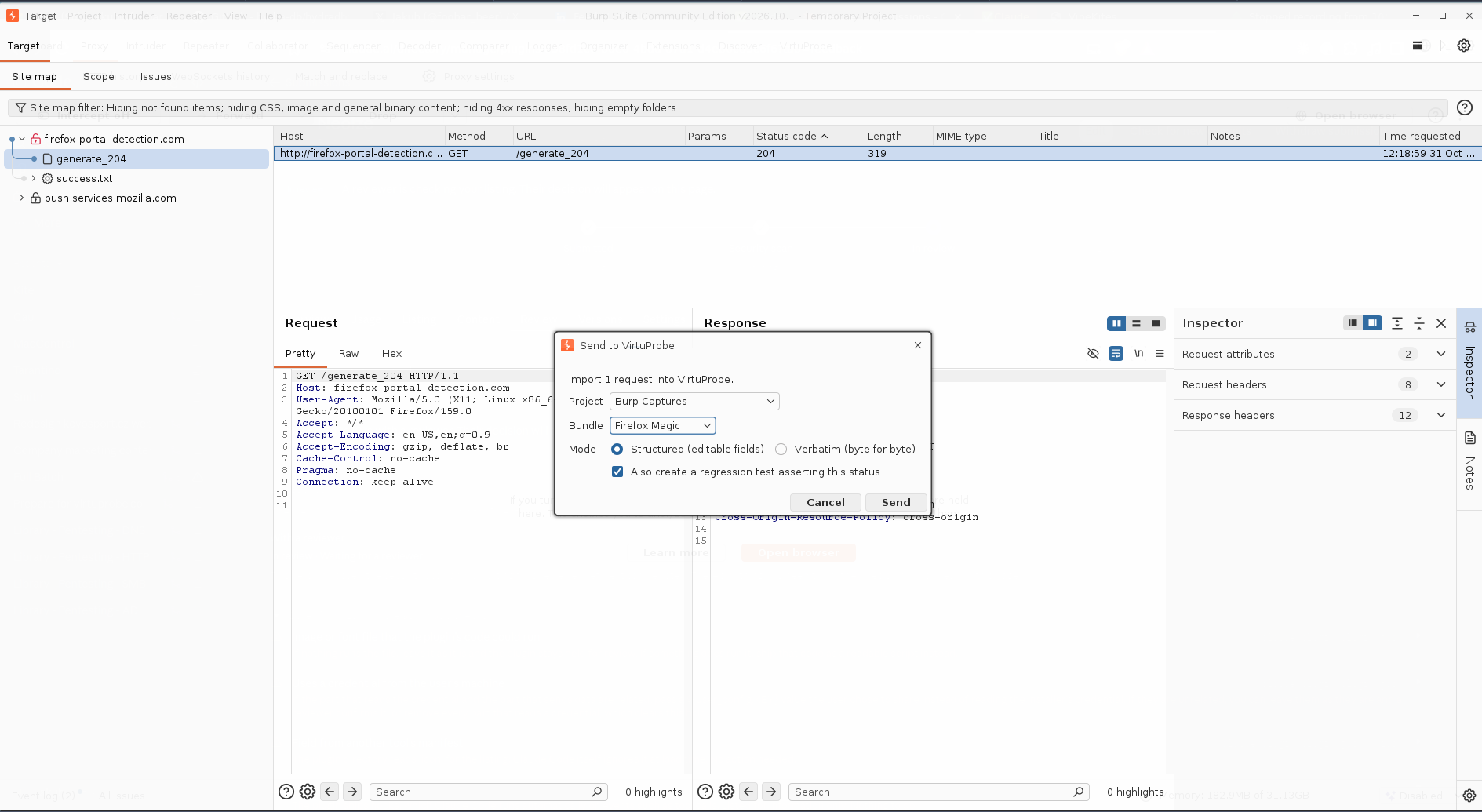
The dialog opens on whatever you chose last time, including across a Burp restart, so sending a series of captures into the same bundle does not mean choosing it again each time.
Send a probe back to Burp
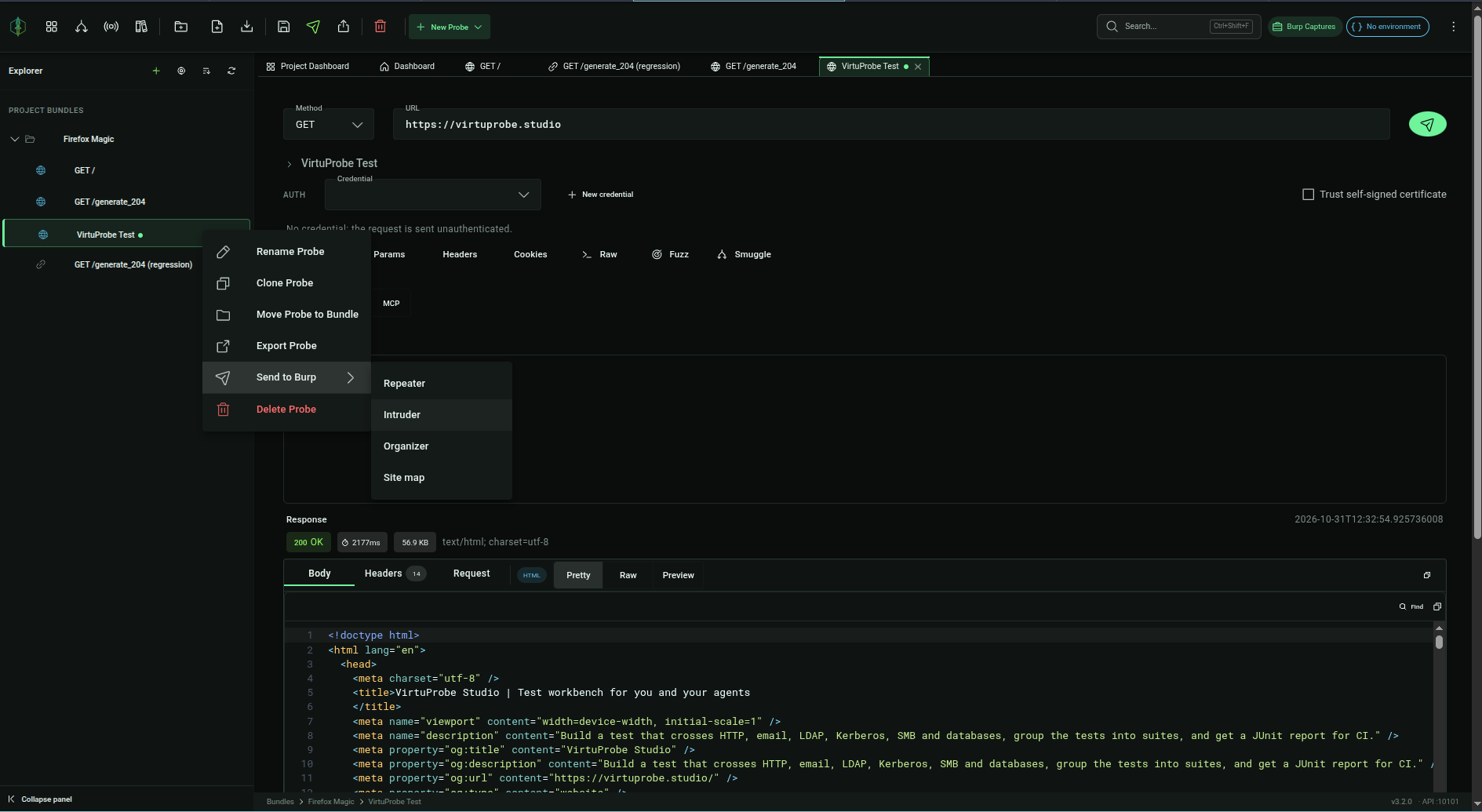
Section titled “Send a probe back to Burp”In the VirtuProbe Explorer, right-click an HTTP probe and open Send to Burp. VirtuProbe resolves the probe against your active environment first, so {{variables}} arrive filled in rather than as placeholders. Pick where it goes:
- Repeater opens it in a new tab, named after the probe.
- Intruder does the same, ready for you to mark payload positions.
- Organizer parks it in your Organizer list.
- Site map files the URL under Target without sending anything.
Burp collects these while Listen for Send to Burp from VirtuProbe is switched on in the VirtuProbe tab, which is the default. With it off, nothing arrives: VirtuProbe holds the request for five minutes and then drops it.