
Environments & Variables
Environments are named sets of key-value variables scoped to a project. Switching the active environment changes the values injected into all probes and chains without modifying any probe configuration. This lets you reuse the same probes against different targets (e.g. dev, staging, prod).
Where environments live
Section titled “Where environments live”Environments belong to a project rather than a bundle. Open the project dashboard (click the project chip in the app bar, then Project Dashboard) to manage its environments. The environment editor is the main (left) panel of the dashboard; the linked bundles, probes, chains and scripts sit in the panel on the right.
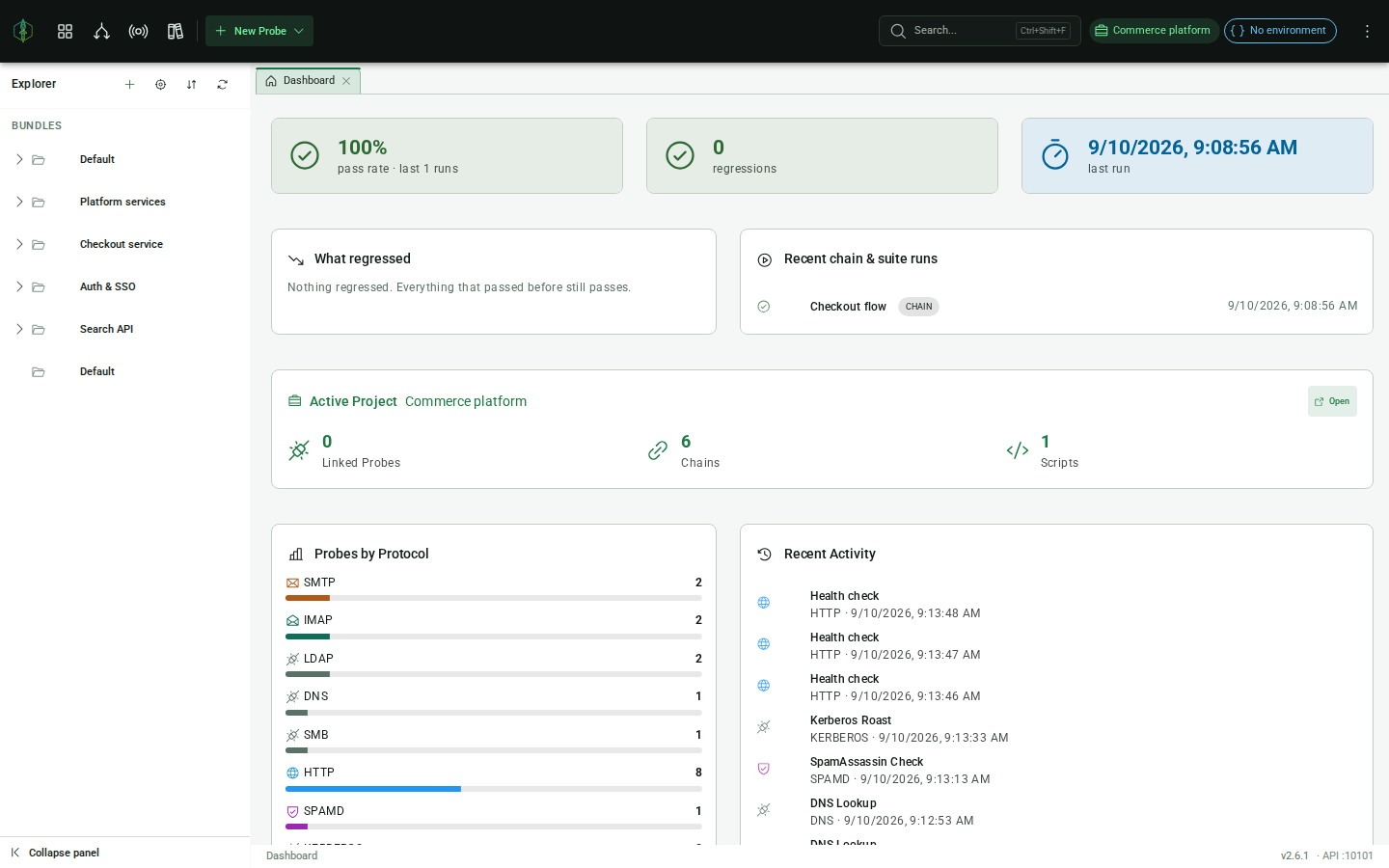
The active project and its active environment are always visible in the app bar:
Creating an environment
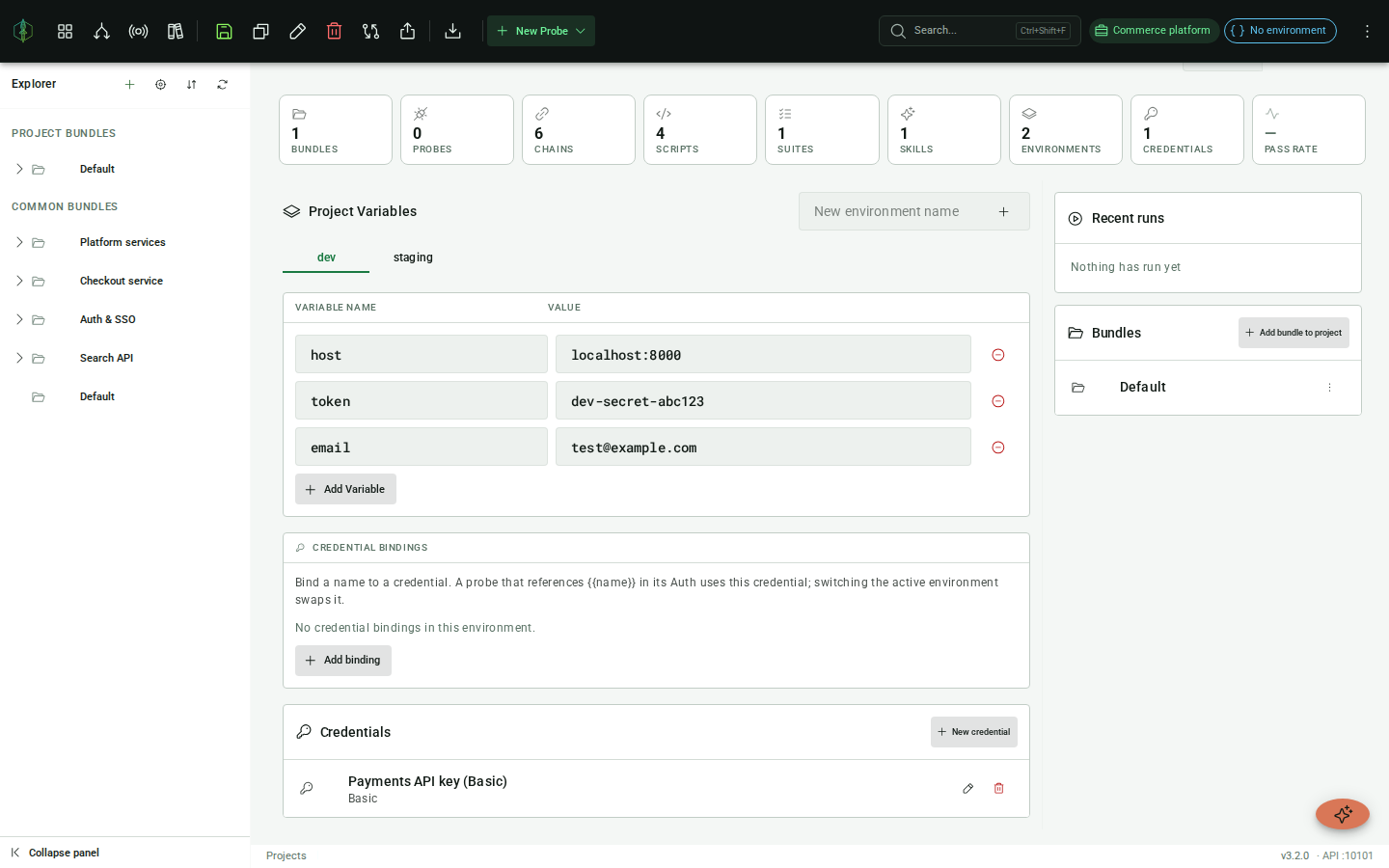
Section titled “Creating an environment”In the project dashboard, type a name in the environment name input at the top of the editor (e.g. dev, staging) and click the + button. Each environment becomes a tab, and clicking a tab edits that environment.
Per-environment actions
Section titled “Per-environment actions”With an environment tab selected, its actions appear in the action toolbar at the top of the app:
| Action | Effect |
|---|---|
| Save | Persists the environment’s variables |
| Clone | Duplicates the environment as … (copy) |
| Rename | Renames the selected environment |
| Delete | Removes it (with a confirmation prompt) |
| Export | Downloads it as a standard environment file (<name>.environment.json) |
| Import | Adds an environment from a file (see below) |
Variables take effect when you save
Section titled “Variables take effect when you save”A variable is only used by probes, chains and scripts after the environment is saved. Until then
it lives in the editor and nowhere else, so a probe with {{baseUrl}} in its URL would send the
placeholder as written and fail.
The editor marks unsaved changes with a dot on the environment tab and a warning, and a send that still contains an unresolved placeholder now says so by name instead of reporting an invalid URL.
Adding variables
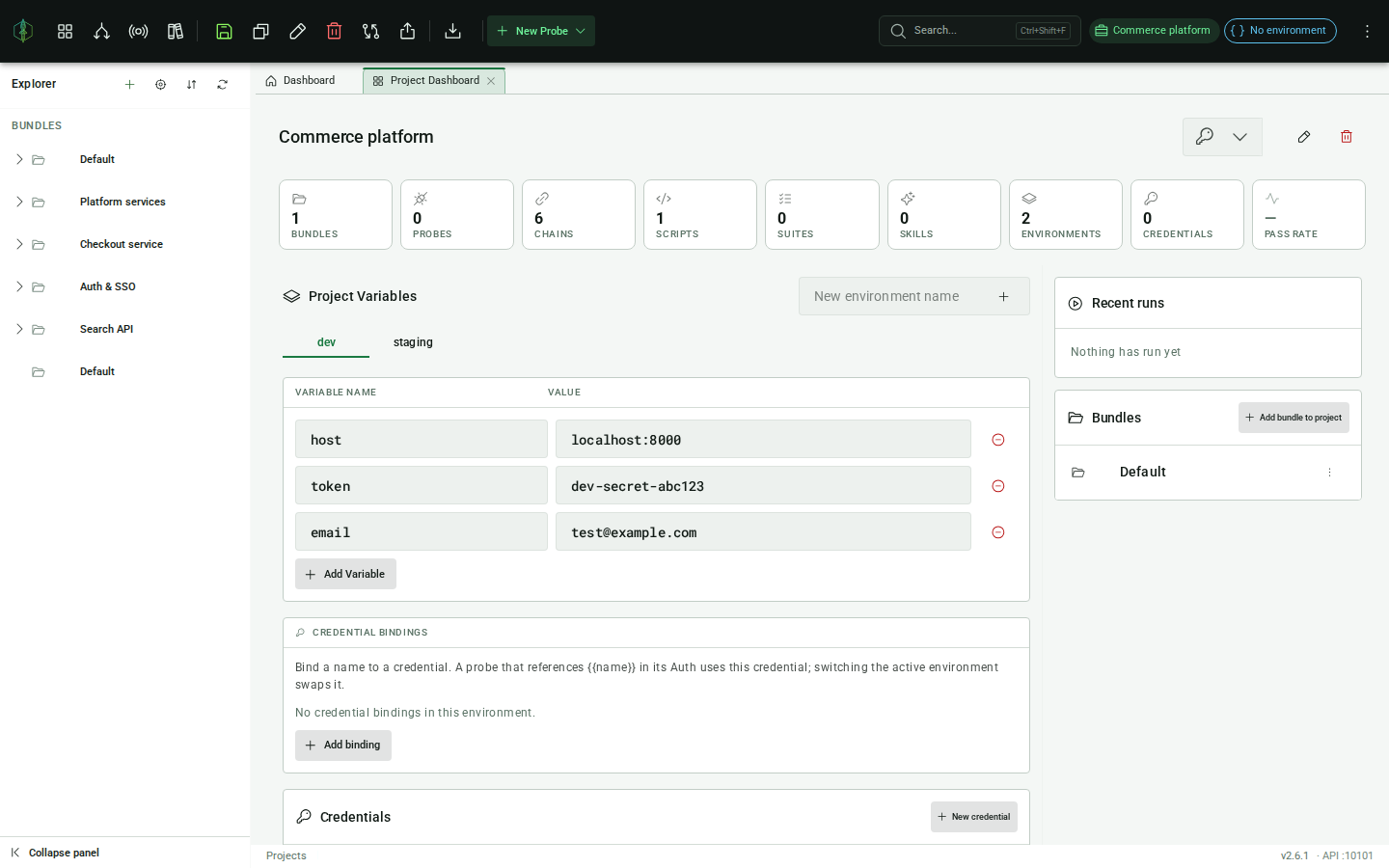
Section titled “Adding variables”Add key-value pairs to the environment. Variable names are case-sensitive.
A variable name can contain letters, numbers and underscores.
Nothing stops you saving a name with a dot or a hyphen in it. You can create order.id today and
it will never be used, so it is worth choosing the name carefully rather than finding out
later.
| Key | Value |
|---|---|
host | api.dev.example.com |
token | dev-secret-token |
email | [email protected] |
Using variables in probes
Section titled “Using variables in probes”Reference a variable anywhere a text field is supported using double curly braces:
https://{{host}}/api/usersAuthorization: Bearer {{token}}When a placeholder is not replaced
Section titled “When a placeholder is not replaced”If a placeholder is not being replaced, check for a space, a dot or a hyphen inside the braces before you check anything else.
The spaces are the one that catches people, because it looks right:
| Written | Replaced |
|---|---|
{{baseUrl}} | yes |
{{ baseUrl }} | no |
{{order.id}} | no |
{{order-id}} | no |
{{order_id}} | yes |
{{ baseUrl }} and {{baseUrl}} are not the same thing. The spaces are part of the placeholder,
so the first one is left exactly as you typed it.
VirtuProbe now tells you while you are editing, quoting the placeholder as written and naming the character that stops it working. Previously the request went out with the text still in it and the problem surfaced somewhere else entirely, usually as a complaint that the address was not valid, with nothing pointing back at the variable.
Supported fields per probe type:
| Probe | Fields |
|---|---|
| HTTP | URL, body, headers, query parameters, cookies |
| SMTP | Host, each command’s data |
| IMAP | Host, each command’s data |
| LDAP | Host, DN, password, filter, attribute, value |
| DNS | Resolver host, query name |
| SpamAssassin | Host, message body |
| SMB | Host, domain, username, password, NT hash, each command’s paths and arguments |
| Kerberos | Host, realm, username, password, SPN |
| MySQL | Host, database, query |
| PostgreSQL | Host, database, query |
| SQL Server | Host, database, instance, query |
| MongoDB | Host, database, collection, filter, document, pipeline, command, connection string |
| Redis | Host, key, value, key pattern, each command’s arguments |
| ActiveMQ | Host, virtual host, destination, message body, each frame’s headers |
| FTP | Host, remote path, upload content, each command |
| Freestyle | Host, each exchange’s payload and expected text, the read delimiter |
Switching environments
Section titled “Switching environments”Click the environment chip in the app bar to open the environment picker for the active project. Click any environment to activate it in one step. To deactivate all environments, choose No environment at the top of the list.
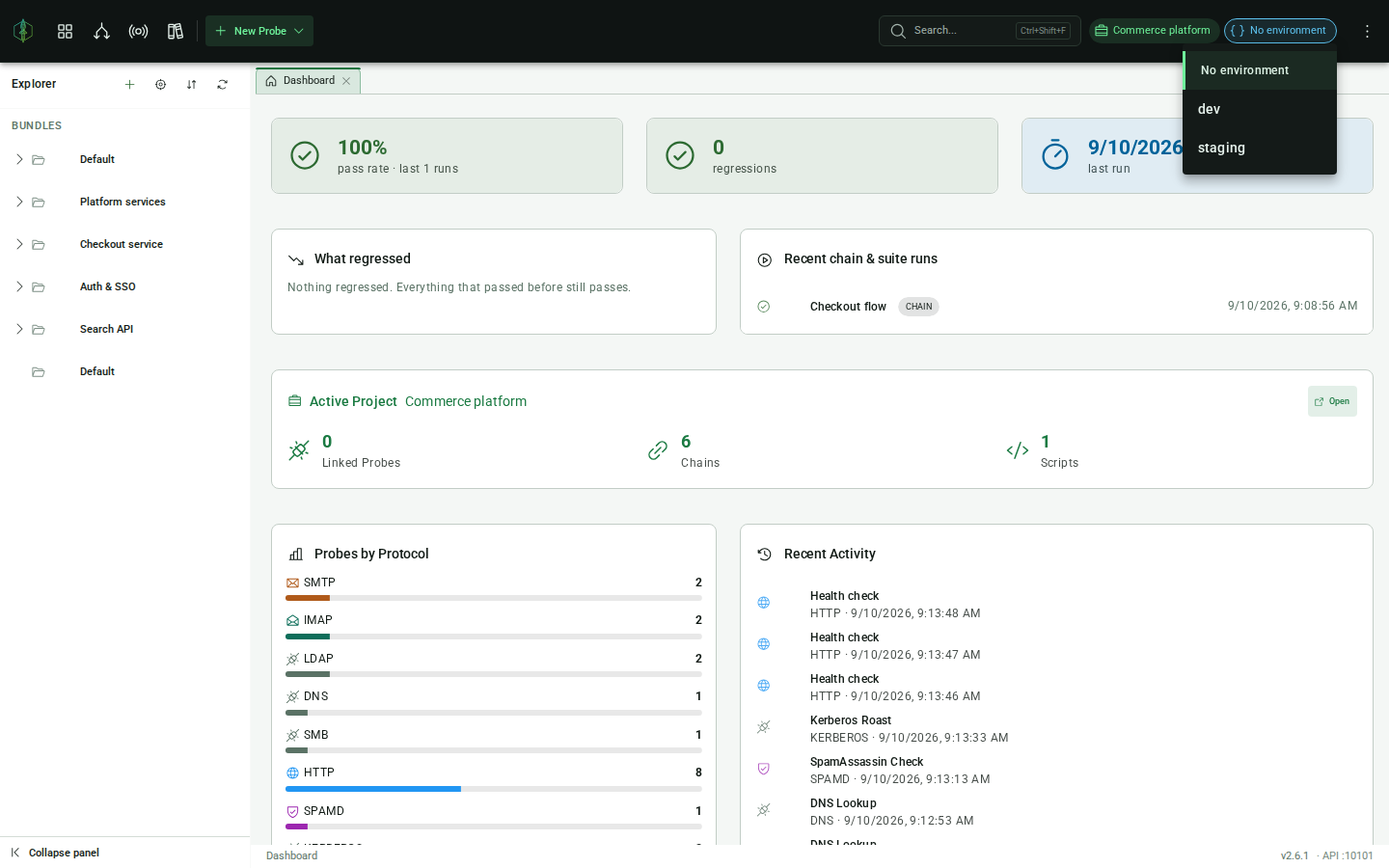
The active environment per project is stored locally and persists across sessions, so it is restored automatically the next time you open the app or switch back to that project.
Variable priority
Section titled “Variable priority”If a probe defines its own inline variables with the same name as an environment variable, the probe’s inline variable wins.
Credential bindings
Section titled “Credential bindings”Environments can bind credentials the same way they hold variables. A credential binding maps a name to one of your stored credentials; a probe references that name in its Auth, and switching the active environment swaps the whole credential (scheme, configuration and secrets) without editing the probe.
This is the classic prod-vs-staging case: staging authenticates with a different token endpoint and client secret than production, sometimes even a different scheme. Instead of two probes, you keep one and let the environment decide.
To set it up:
- In the Project Dashboard, select an environment and open the Credential bindings card below the variables.
- Add a binding: give it a name (for example
authCred) and pick the credential to use in this environment. - Repeat for your other environments, reusing the same binding name.
- In an HTTP probe’s Auth picker, choose the binding under Environment bindings (it is stored as
{{authCred}}).
Now switching the environment chip swaps the credential the probe resolves to. The effective-credential summary under the Auth picker shows an env binding source and which concrete credential it currently points at. Bindings resolve for a direct send, in chains and in scripts.
If a binding is not defined in the active environment, a direct send falls back to the project’s default credential and a chain step fails with a clear message naming the missing binding. Credential bindings work in every probe editor with a credential picker: HTTP, SMTP, IMAP, LDAP, MySQL, PostgreSQL, MongoDB, SQL Server and ActiveMQ.
Importing & exporting environments
Section titled “Importing & exporting environments”Use Export (in the action toolbar with an environment selected) to download the environment as a standard environment file. The file uses the common environment schema, so it imports into other request tools as well as back into VirtuProbe.
Use Import to add an environment from a file. Supported formats:
- A standard environment export (
.json) - A dotenv file (
.env) ofKEY=valuelines - A Bruno environment file
The imported environment is created in the active project and selected automatically.
Comparing environments
Section titled “Comparing environments”Once a project has two or more environments, the Compare environments action in the toolbar opens a side-by-side diff. Pick two environments and VirtuProbe shows, for both variables and credential bindings, which entries exist only on one side, which differ, and which match (identical rows are hidden until you ask for them).
From the diff you can copy an entry either direction, or copy every missing entry at once. That is a quick way to bring a new environment up to date with an existing one, or to reconcile two that have drifted apart. Copies are held until you choose Save changes, which writes both environments.
Environments in chains
Section titled “Environments in chains”A chain resolves variables when it runs, using the active project’s environment. Variables produced by extractors in earlier steps take precedence over environment variables of the same name.